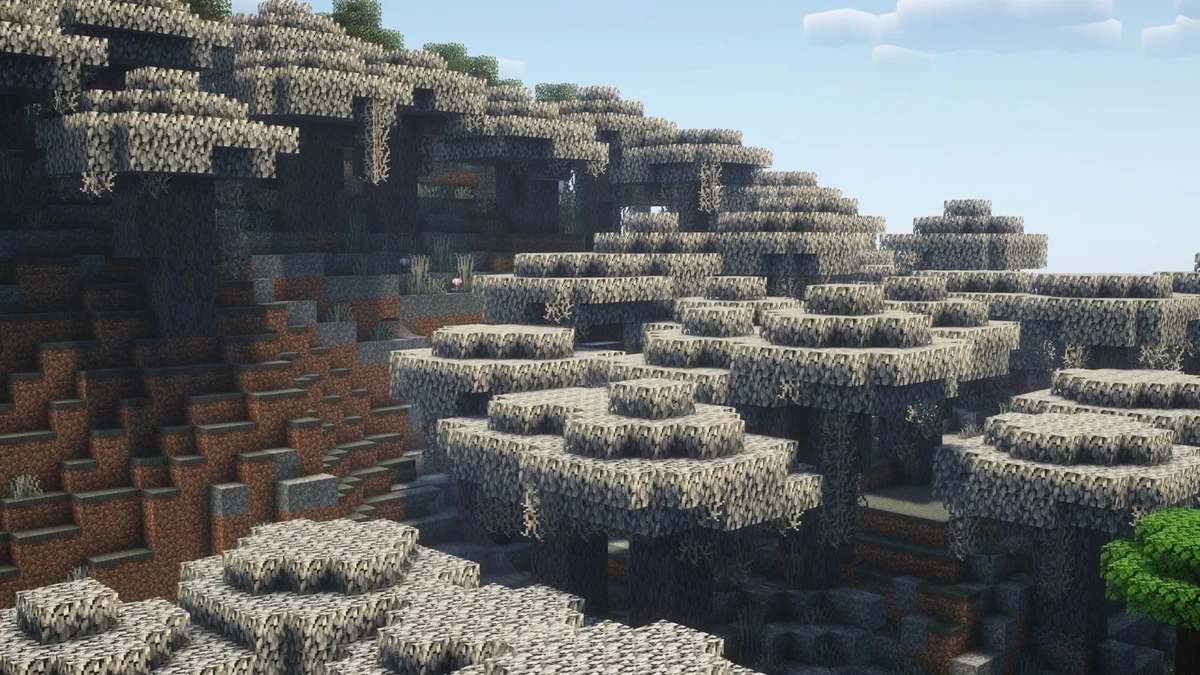
Installing AmbientSounds Mod comes down to three things: the right Minecraft version, the right loader build and a matching CreativeCore dependency. Follow these steps for a clean setup.
1. Confirm the loader
Open the Minecraft instance you plan to use and verify its loader. AmbientSounds is listed for Fabric, NeoForge and Forge, but the downloaded file must match.
2. Download AmbientSounds and CreativeCore
Get the AmbientSounds release intended for your Minecraft version and loader, then obtain a compatible CreativeCore release for the same environment.
3. Place both JAR files in the mods folder
Copy the matching files into the mods folder for that instance. Avoid leaving several alternative builds in the same folder.
4. Launch and verify
Start Minecraft through the matching loader profile. Once in game, use the config command documented by the project if you want to adjust settings.
Related guides
Continue with the AmbientSounds Mod guide index, the installation checklist, or the 20-question FAQ.